
Best export settings for a client review copy (small file, still sharp)
Codec, resolution and bitrate for review exports from Premiere Pro, DaVinci Resolve and Final Cut, and how to send a large video to a client.
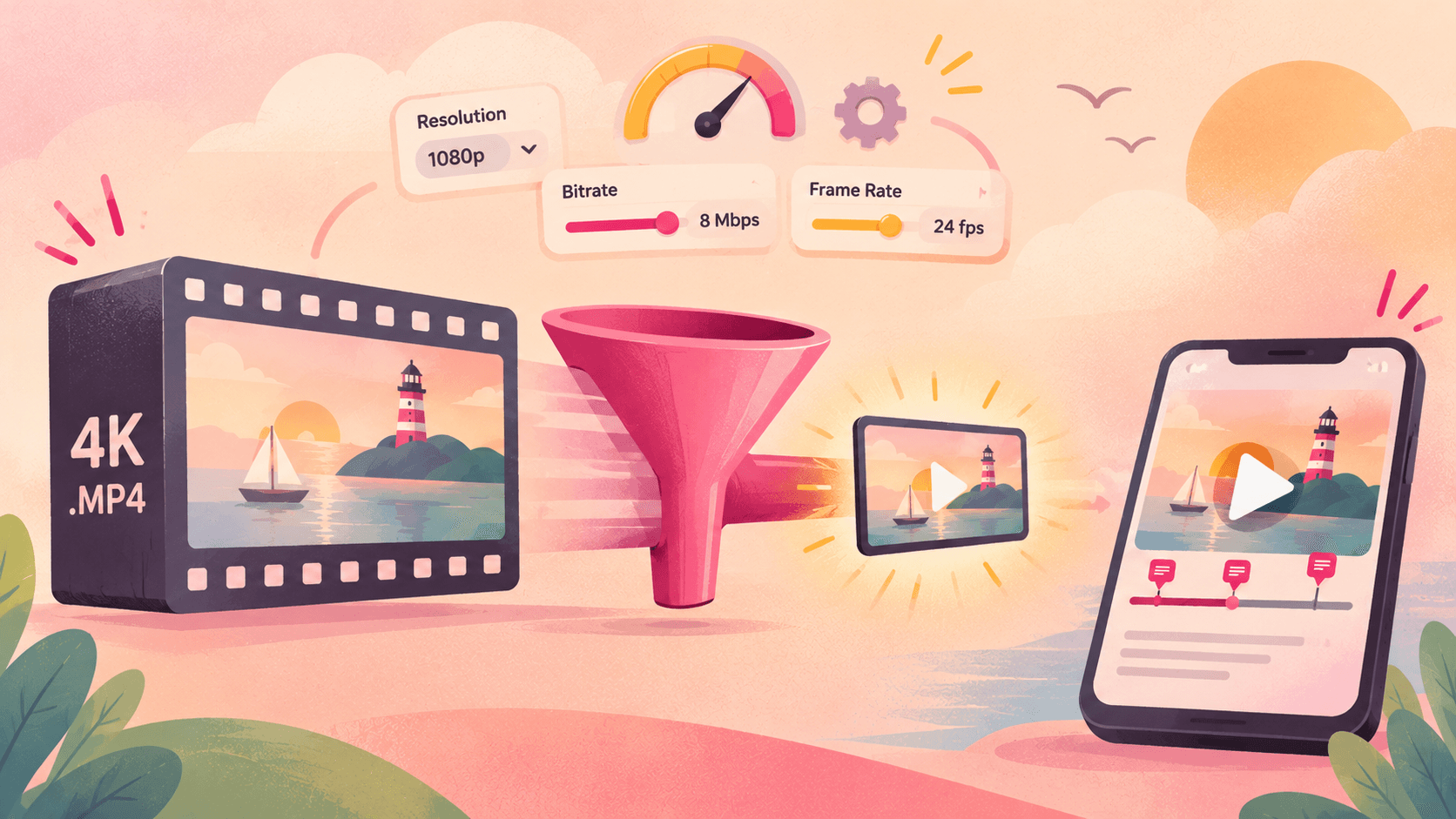
A client review copy has one job: let the client see exactly what you cut, quickly, on whatever screen they have. It doesn't need to be the master.
Export a 4K ProRes master for review and you'll wait an hour for an upload, and your client will wait for a buffering player on their phone. Export too small and they'll send notes about "blurry footage" that's fine in your timeline.
Here are settings that hit the middle.
The short answer
Format: MP4
Codec: H.264
Resolution: 1080p (match your timeline's aspect ratio; 1080×1920 for vertical)
Frame rate: same as your timeline. Don't convert. (Why frame rate matters)
Bitrate: 8 Mbps for 24–30 fps, 12 Mbps for 50–60 fps, VBR 1-pass
Audio: AAC, 48 kHz, 320 kbps stereo
Burn-ins (optional): timecode, top or bottom corner
A 10-minute export at these settings is about 0.6–0.9 GB. The same cut as ProRes 422 is often over 10 GB.
When to go higher
Colour or grading review: raise to 16–20 Mbps, or send a higher-quality file just for the colourist. Low bitrates create banding in skies and gradients that can look like a grading problem.
Fine detail or text-heavy graphics: 12–16 Mbps at 1080p.
The client will judge sharpness on a 4K screen: export 4K H.264 at 35–45 Mbps (24–30 fps). Otherwise 1080p is enough for review.
Premiere Pro
File → Export → Media (or the Export tab).
Format: H.264. Preset: Match Source – Adaptive High Bitrate is a good start.
Under Video: set resolution to 1920×1080 if your sequence is larger, keep frame rate at Match Source.
Bitrate encoding: VBR, 1 pass, target 8 Mbps (12 for 50–60 fps).
Audio: AAC, 48 kHz, 320 kbps.
For timecode burn-in: Effects → Timecode Overlay in the export dialog.
With the Seamlift panel for Premiere Pro you can skip this: click Commit and the panel renders the sequence and uploads it to your project as the next version.
DaVinci Resolve
Go to the Deliver page.
Format: MP4, Codec: H.264 (H.264 hardware encoding is fine on most machines).
Resolution: 1920×1080, frame rate: same as timeline.
Quality: Restrict to 8,000 Kb/s (12,000 for 50–60 fps).
Audio: AAC, 320 kbps.
Add to Render Queue, render.
For timecode burn-in: Workspace → Data Burn-In. With the Seamlift app for DaVinci Resolve, Commit renders and uploads the timeline for you, and review comments come back as markers on your timeline.
Final Cut Pro
File → Share → Export File.
Format: Video and Audio, Video codec: H.264 Better Quality.
Resolution: 1920×1080.
Final Cut doesn't expose a bitrate field here. For a smaller file, send it to Compressor with a custom H.264 setting at 8 Mbps.
H.264 or H.265 (HEVC)?
H.265 gives the same quality at roughly half the size, but some browsers, older Windows machines and corporate laptops can't play it without extra codecs. For files a client opens directly, H.264 is the safe choice.
If you upload to a review platform that converts the video for streaming, the codec you upload matters less. It plays in any browser either way.
How to send a large video to a client
Email: attachments are capped around 20–25 MB. Not an option for video.
WeTransfer, Google Drive, Dropbox: fine for delivery, but the client downloads a file and sends notes separately, usually as "at about 1:40...". You lose track of which notes belong to which version.
A review link: you upload once, the client streams it in the browser, adjusted to their connection, and comments on the exact frame. The next version goes into the same place.
In Seamlift you can upload anything from an H.264 review copy to a ProRes master; it's converted for smooth streaming on any device. Share links can have a password, an expiry date and downloads on or off, and clients comment as guests without an account. 10 GB free. Try it free.
Keep masters out of your review storage
Review storage is for files people watch and comment on. Keep masters, project files and source footage on your drive or NAS, upload review copies, and delete old drafts once a project is approved. A 10 GB free plan goes a long way with 1 GB review exports.
- workflow
- client-review
- premiere-pro
- davinci-resolve