
23.976 vs 24 vs 25 vs 30 fps for YouTube: which to shoot, edit and upload
Pick one frame rate before you shoot and keep it to the upload. Here's how to choose, and what goes wrong when rates get mixed.
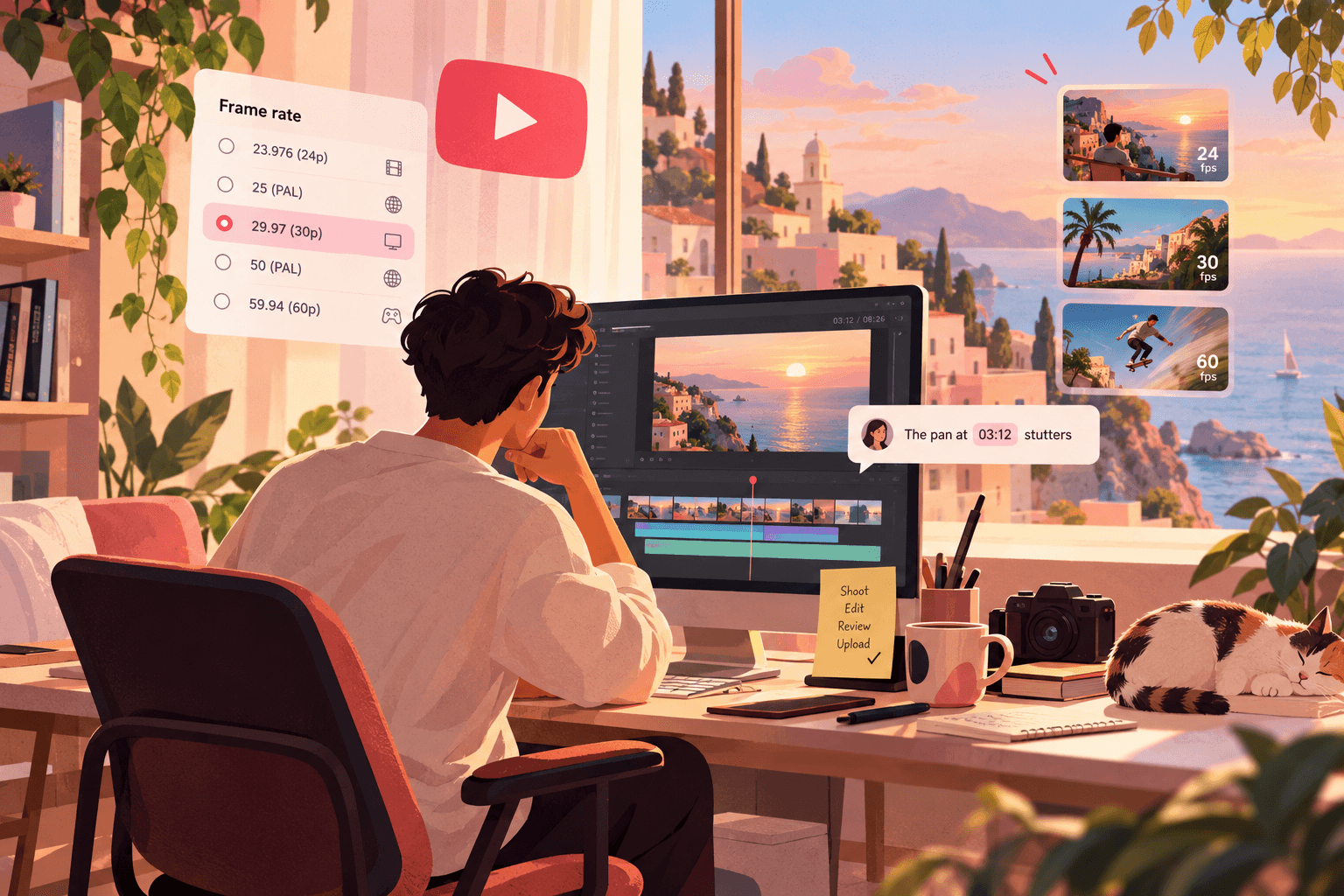
YouTube plays whatever frame rate you upload, up to 60 fps. It doesn't convert 24 to 30 or 25 to 60. So the frame rate you choose when you shoot is usually the frame rate your viewers see.
That makes the choice simple in theory and messy in practice, because footage from a camera, a phone and a screen recorder often arrives at three different rates. This guide covers which rate to pick and how to keep one rate from shoot to upload.
The short answer
Talking head, vlog, tutorial in a 60 Hz country (US, Canada, Japan, most of the Americas): 29.97 (usually labelled 30) or 23.976 (usually labelled 24).
Same content in a 50 Hz country (India, UK, Europe, Australia, most of Asia and Africa): 25. It avoids flicker under mains-powered lights.
Cinematic look, any country: 23.976 or 24, as long as you control your lighting or use flicker-free lights.
Gaming, screen recording, sports, fast motion: 60 (59.94) in 60 Hz regions, 50 in 50 Hz regions.
Slow motion: shoot at 2x to 5x your timeline rate (50, 60, 100, 120), then conform it to the timeline rate.
Then: set your timeline to the same rate, and export at the same rate.
What the numbers actually mean
23.976, 29.97 and 59.94 are the broadcast versions of 24, 30 and 60. They run 0.1 percent slower, a leftover from colour TV in North America. Most cameras labelled "24p" or "30p" actually record 23.976 or 29.97. Check your clip properties; the difference matters when you mix footage.
24 is true 24 frames per second, the cinema standard. Some cameras offer it as a separate "24.00" option.
25 and 50 are the PAL-region rates, matched to 50 Hz mains power.
30 and 60 are true integer rates, common on phones, screen recorders and game capture.
Decision table
Shooting under household lights in India or Europe: 25 or 50. 24 or 30 can flicker or show rolling bands under 50 Hz lighting.
Shooting under household lights in the US: 29.97 or 59.94. 25 can flicker under 60 Hz lighting.
Daylight or flicker-free LED lights: any rate. Choose by look.
Mostly screen recording: match the recorder, usually 30 or 60.
Mixed camera and screen recording: pick the camera's rate for the timeline and set the screen recorder to match before recording.
Content for an international audience: any rate is fine on YouTube. Choose for your lighting, not your audience.
What goes wrong when rates get mixed
Putting footage of one rate on a timeline of another forces the editing app to invent or drop frames:
30 on a 24 timeline: frames are dropped. Usually fine for talking heads, visible as stutter on pans and moving text.
24 on a 30 timeline: frames are repeated, causing a regular judder on movement.
25 on a 23.976 or 29.97 timeline: an uneven pattern of dropped or repeated frames. This is the most visible mismatch.
29.97 on a 30 timeline (or 23.976 on 24): almost invisible to the eye, but audio can drift out of sync over long clips, and timecodes won't match.
Fixes, in order of preference:
Shoot everything at one rate. Set it on every camera, phone and recorder before the shoot.
Conform high-frame-rate footage (60 to 24 for slow motion) using your editor's "interpret footage" or "clip attributes" setting, rather than letting the timeline drop frames.
Use optical flow or frame blending only for the shots that need it. It can create warping artefacts, so check every shot.
Export settings for the upload
Frame rate: same as the timeline. Don't change it on export.
Codec: H.264 or HEVC in an MP4 is fine for most uploads. YouTube re-encodes everything anyway.
Bitrate: YouTube's own help page lists recommended bitrates per resolution and frame rate. Higher-frame-rate uploads need more.
Variable frame rate: phone and screen recordings are often VFR. Convert them to constant frame rate before editing, or audio can drift out of sync.
Frame rate in review
Frame rate also matters before upload. If a client or creator reviews a cut where the pans stutter, they'll leave notes about it, and the fix is usually in the timeline settings, not the shot.
Review the cut at its real frame rate. Seamlift plays your export at its own frame rate, and every comment is pinned to a timecode and frame, so "the pan at 03:12 stutters" goes straight to the right shot. When you fix it, upload the new export as a version on the same file and play both side by side.
FAQ
Is 24 fps or 30 fps better for YouTube?
Neither is better. 24 (23.976) looks more like film, with more motion blur. 30 (29.97) looks smoother and more like TV or a live stream. Pick the one that fits the content and your lighting.
Does YouTube convert my frame rate?
No. YouTube keeps the uploaded frame rate, up to 60 fps. Anything higher is played back at a lower rate.
Should I upload in 60 fps to get higher quality?
Higher frame rates get higher bitrate streams at the same resolution on YouTube, which can help fast motion. They don't make a talking-head video look better, and they double the frames your editor works with.
My camera says 24p but my editor says 23.976. Which is right?
Probably both. Most cameras label 23.976 as "24p". Check the clip's properties in your editor and set the timeline to match exactly.
Try timecoded review on your next cut: Seamlift is free up to 10 GB.
- youtube
- export
- guide